
New Feature: Snapshot and Explore Teams Tabs - November 2025
This Update Brings Two Smarter Tabs to Help You Get Faster Insights and Explore Teams More Easily
We want to share details about a Chime V5 update releasing in November 2025 through the Teams Store. This release adds two new tabs to make support faster and easier for end users. These new tabs are built directly into the Microsoft Teams client so users can find, continue, or start support conversations within the Teams app.
Overview of New Tabs - Snapshot and Explore
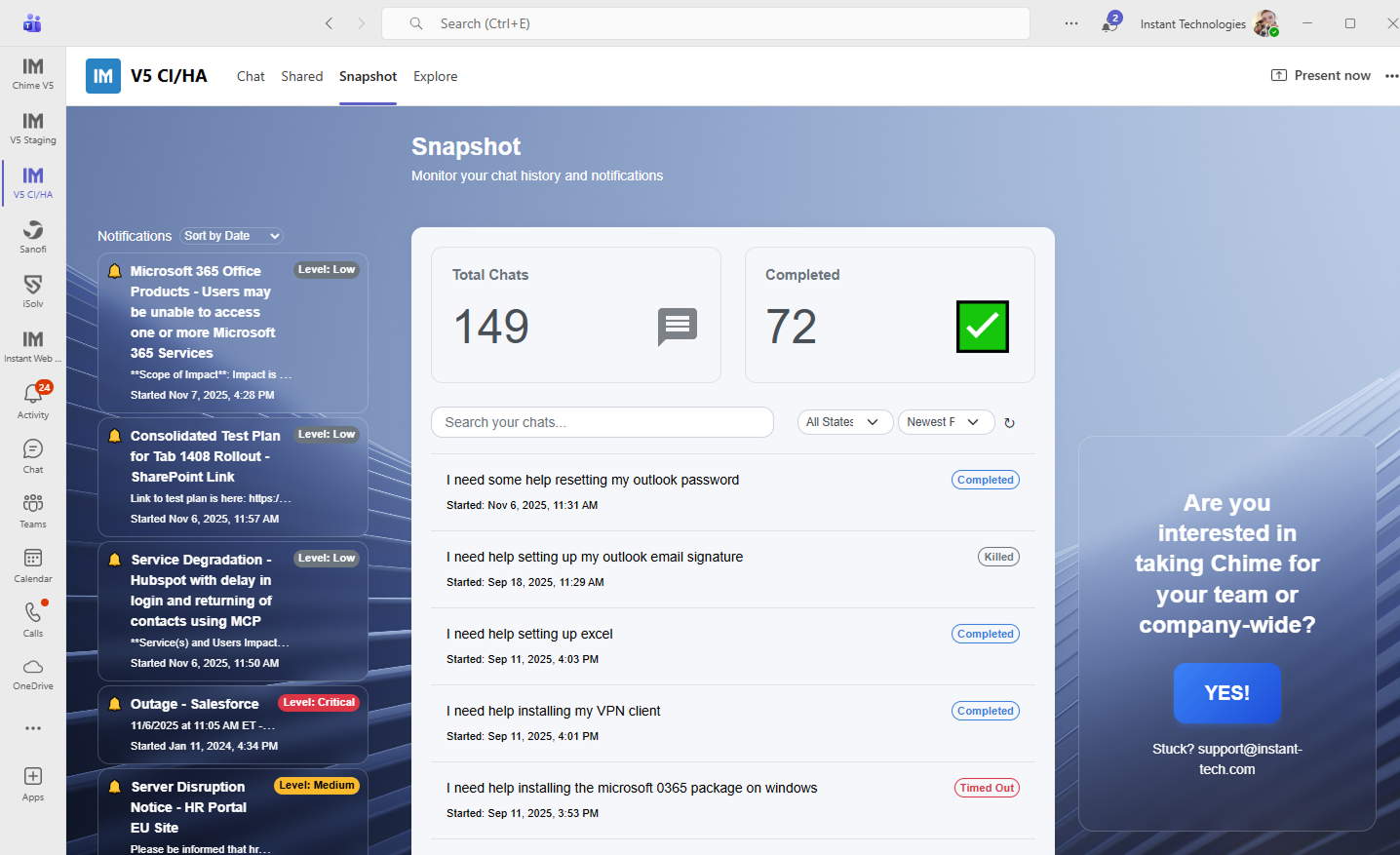
Snapshot gives your users a clear view of any Chime chats they have started, along with any notifications/announcements you have created. The Snapshot Tab shows real-time notifications, chat summaries, and outage information directly within Teams.
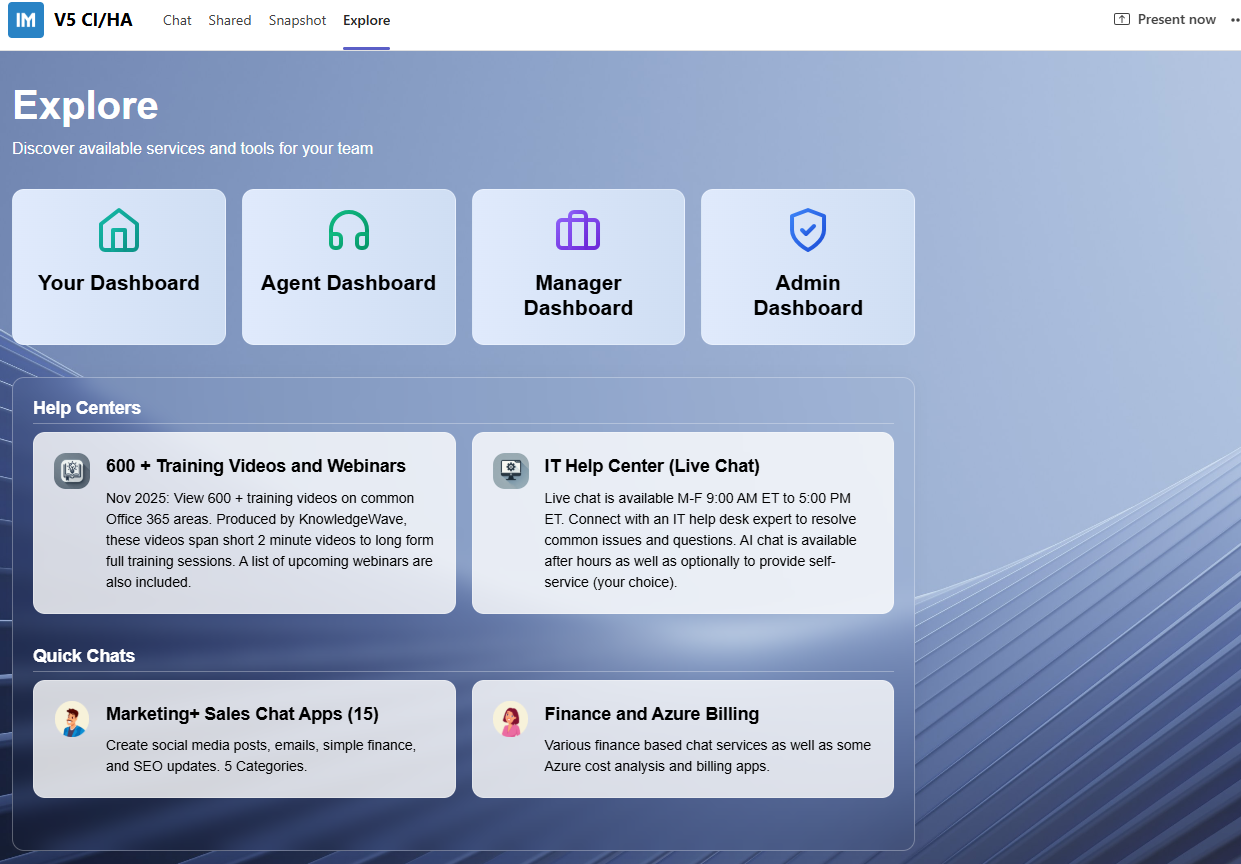
Explore provides a simple way to surface more resources to your end users. You can provide available help centers or launch a quick chat for assistance. Role-based dashboards automatically adapt for Agents, Managers, and Admins.
Notice to Global Administrator or Cloud Application Administrator
When this update comes through the Teams Store, any user who opens up the Chime V5 app will be prompted with a banner to update the app in Teams. They are able to use the app without updating, but will not receive the new features. However, once they update, they will be prompted to accept some delegated Teams Tab permissions for the new app if those permissions are not yet consented to by an Administrator in the organization. To make this a smooth process of updating we will want one of Global Administrator or Cloud Application Administrator to grant consent on behalf of your organization. We will present what we are asking consent for and how to consent to it as an admin.
We are not adding any net new Entra ID permissions, these permissions are specific to Chime Tabs that run within the Microsoft Teams client. Unlike general Azure app permissions which you would have consented to in the past, these tabs require resource-specific consent (RSC) permissions that allow them to operate within Teams contexts like channels or chats without broad tenant-wide access. Therefore, consent is requested again when the tab is rendered inside Teams to ensure users or admins explicitly approve these scoped permissions.
This update for new Chime Tabs request access-as-user right (Azure App Registration). Delegated permission. This is implemented using the delegated user permission configured in the App Registration. This permission enables the Chime Tabs in Microsoft Teams client to access Chime APIs and resources using the user's identity and consent. This enables us to quickly and securely authenticate users and let them seamlessly see previous chat history, notifications, help centers, and access quick chats.
We have put together a video on how to see the new updates come through and what the Admin will be consenting to:
Accepting Permissions for Chime V5 Teams Tabs - YouTube Video
For more information on Teams Tabs Permissions you can check out this Microsoft article:
Understand the permissions of and the information accessed by Teams apps
If you have any questions about the permissions we are requesting consent to, feel free to email us at support@instant-tech.com or instantdev@instant-tech.com and we would be happy to provide any additional information on why we are using these permissions.
Steps for Admin to Consent to Teams Tab Permissions
Here are the steps you would take to consent to Teams Tab Permissions as the Admin:
Navigate to your Teams Client
Open the Chime V5 App
You should see a banner on the app that says “New version is available” and an “Update” button on the right. Click the Update button
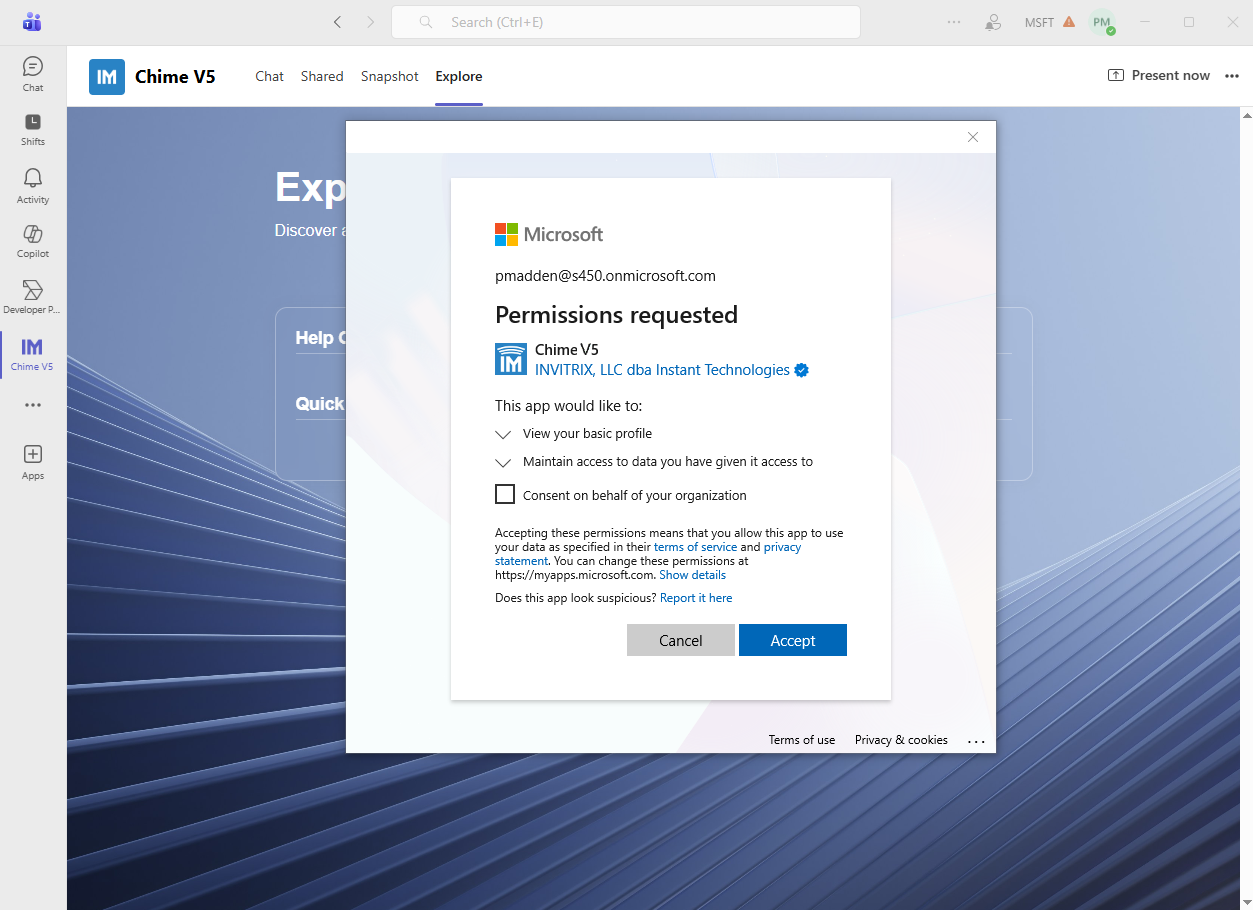
Once you have started the update, the Teams app may prompt you to accept permissions.
If you are Global Administrator or Cloud Application Administrator, you will have the option in this permission consent form to Consent on behalf of your organization.
Select the check box to Consent on behalf of your organization.
Click the Accept button.
FAQ: Updating the Chime App in Microsoft Teams
How do Teams admins manage Chime updates?
Admins can review and manage new versions in Teams Admin Center → Teams apps → Manage apps. Microsoft explains the update process and admin responsibilities here:
https://learn.microsoft.com/en-us/microsoftteams/apps-update-experience
What happens if an update requires new permissions?
If the update introduces new Graph permissions or changes key app settings, admins or users must approve them before the update completes. Details here:
https://learn.microsoft.com/en-us/microsoftteams/apps-update-experience#when-admins-need-to-upgrade-an-app
How do end users update the Chime app?
Users will see an Update button inside the app when a new version is available. If updates don’t appear immediately, restart Teams or navigate away and return. Microsoft’s general guidance:
https://support.microsoft.com/en-us/office/update-an-app-in-microsoft-teams-3d53d136-5c5d-4dfa-9602-01e6fdd8015b
I installed Chime from the Teams Store without tenant setup. Will I still get updates?
Yes. Evaluation/demo users automatically receive app updates. You may need to accept new permissions if required by the updated version.
How long does it take for updates to appear for all users?
Most updates appear quickly, but some (especially those requiring permissions) may take up to 24 hours. Users may also need to restart Teams due to caching.
Where can I find Microsoft’s documentation on Teams app updates?
Teams app update experience: https://learn.microsoft.com/en-us/microsoftteams/apps-update-experience
Manage apps in the Teams Admin Center: https://learn.microsoft.com/en-us/microsoftteams/manage-apps
End-user app updates: https://support.microsoft.com/en-us/office/update-an-app-in-microsoft-teams-3d53d136-5c5d-4dfa-9602-01e6fdd8015b